


Language translation in Pepper Cloud CRM: A user guide
This user guide explains how to use the language translation feature in Pepper Cloud AI CRM to communicate seamlessly with global customers. Learn how admins and agents can configure base languages, enable live or manual translation, and manage multilingual conversations.
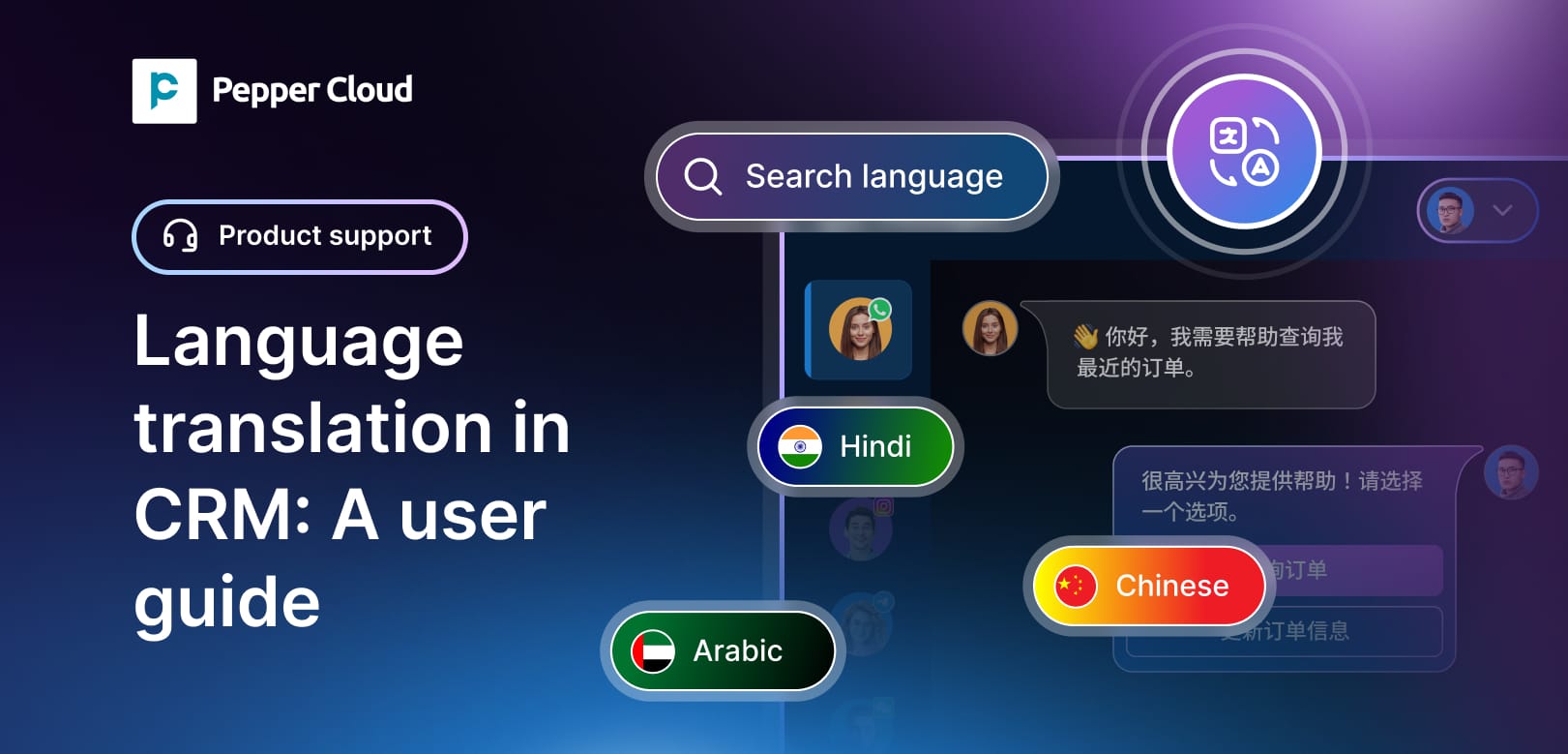

The language translation feature in Pepper Cloud AI CRM empowers businesses to communicate with their global clientele seamlessly. With real-time translation across various languages, support and sales teams can now break language barriers during customer conversations, improving clarity and customer experience
This guide provides an overview of the language translation feature, its benefits, setup instructions, and usage scenarios to help clients make the most of it.
Feature overview
Language translation in Pepper Cloud AI CRM allows users to translate chat messages into their preferred language. Admins can configure up to five supported languages, and users can enable translation per conversation. The feature offers both automatic and manual translation options, with support for real-time and individual message translation.
Key benefits
- Real-time translation of customer messages with <2 seconds latency
- Improved communication with multilingual customers
- Increased agent efficiency with auto-translation and visual translation indicators
How to enable and use the language translation feature
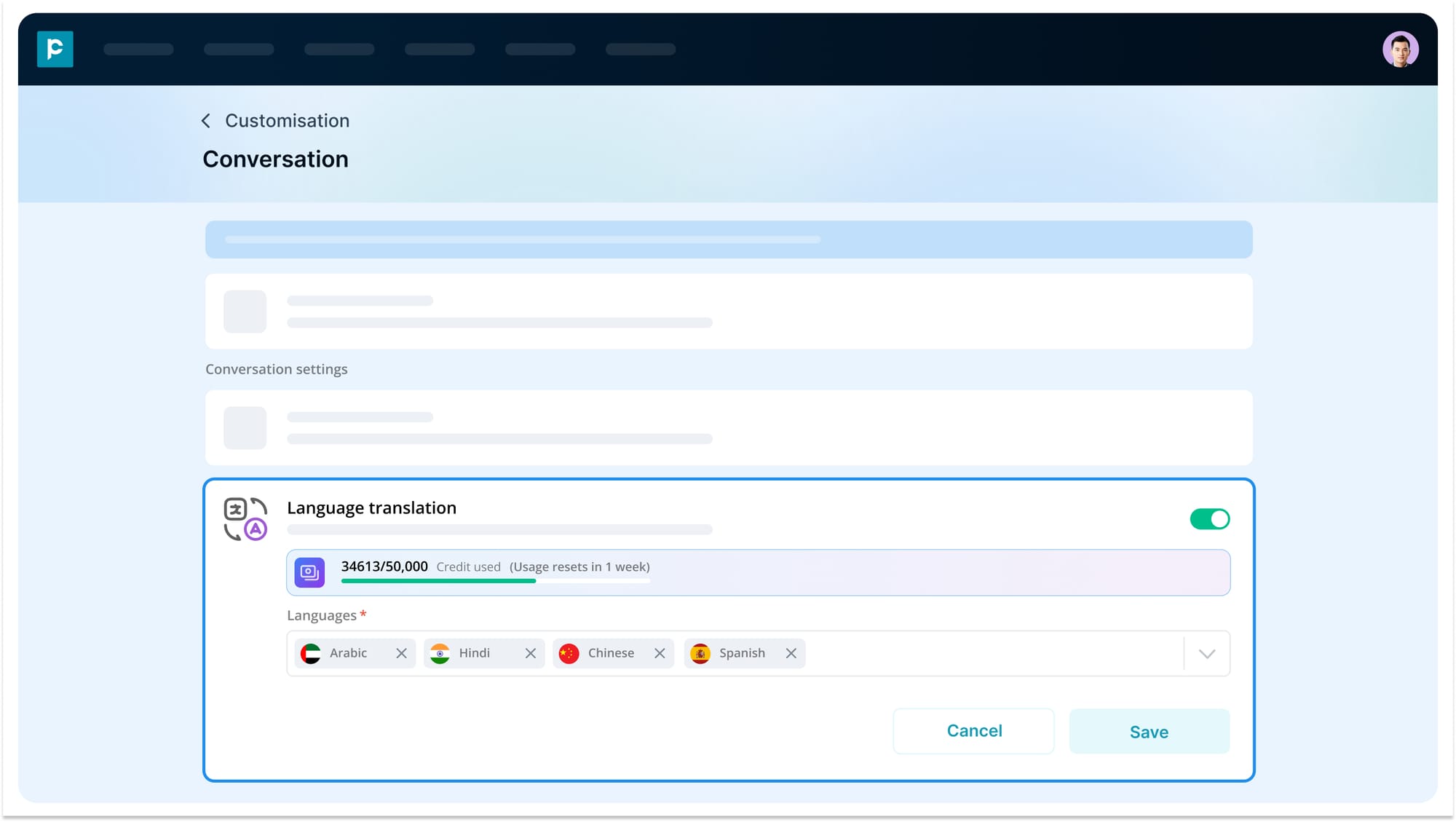
Step 1: Admin setup
- Go to Settings > Customisation > Conversation.
- Enable language translation.
- Choose up to 5 preferred languages that users can select for conversations.
Step 2: User configuration
- Each user must set up preferred languages.
- On the right panel of the message module, choose the preferred language from the dropdown list.
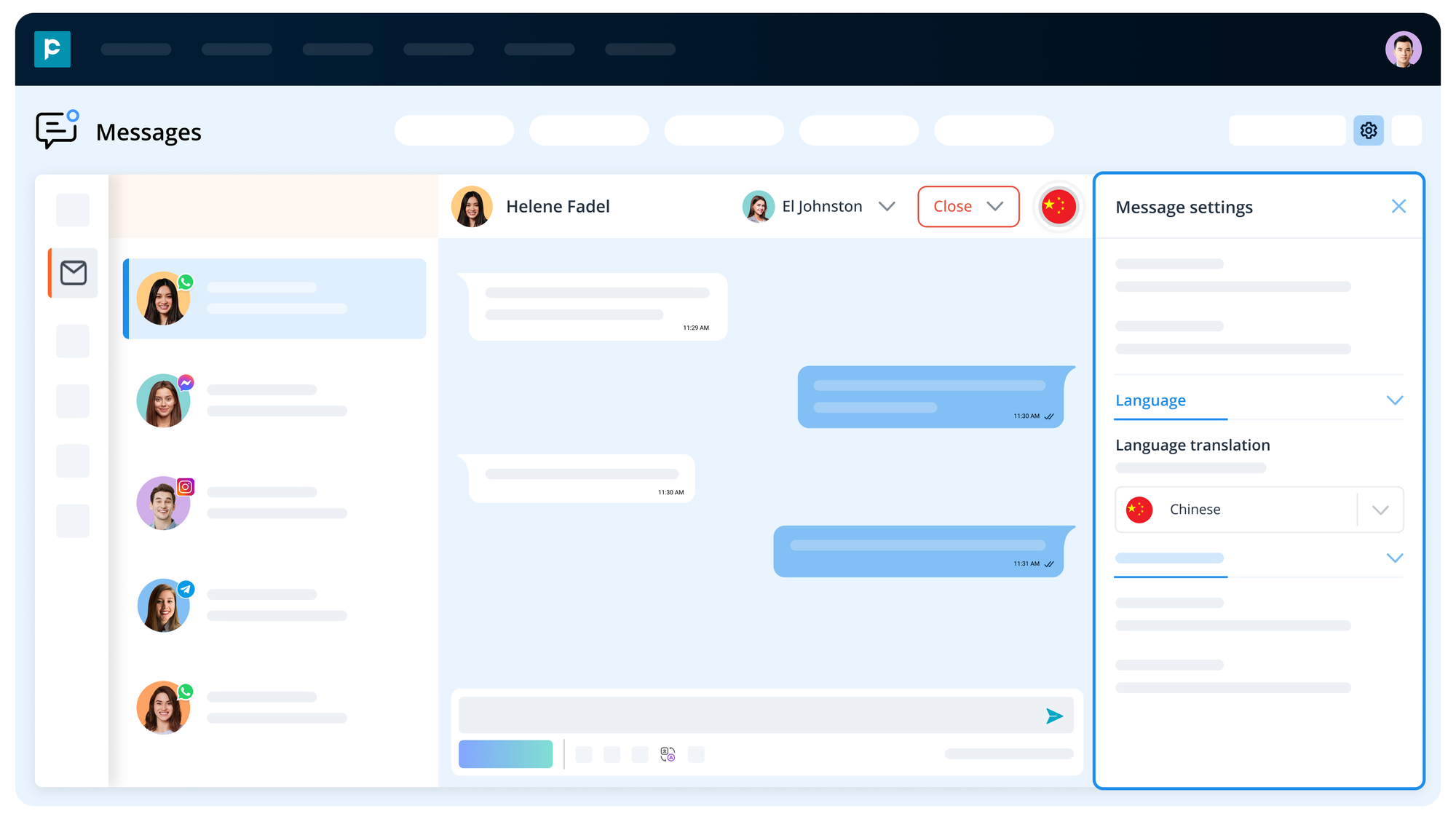
Note: The dropdown list shows the languages that have been chosen by the admin in the Settings.
- The chosen preferred language determines the default language in which all incoming messages will be translated for the user.
Steps: Translate messages
Pepper Cloud CRM provides two primary translation modes to support multilingual customer communication: automatic and manual translation.
1. Automatic translation
Also known as live translation, this mode automatically translates all incoming and outgoing messages in real-time once base languages are configured. It eliminates the need for user intervention during conversations.
- Works at the conversation level
- Ensures seamless translation without delays
- Disables manual translation options while active
- Visual indicators confirm that messages are being auto-translated
2. Manual translation
Manual translation offers user-level control for translating individual messages or previews before sending. It is useful when agents want to review or selectively translate messages.
Manual translation options include:
- Translate specific messages: Use the translate icon next to any message to view it in your base language.
- Translate before sending: Use the translate icon in the message editor to preview your message in the recipient’s base language before sending. This option retains emojis and formatting.
This approach gives agents the flexibility to control how and when messages are translated while ensuring message accuracy and intent.
How translation works for messages
Pepper Cloud CRM handles both incoming and outgoing messages based on the selected translation mode and base language settings.
- Incoming messages (Customer → Agent):
- System auto-detects the customer's language.
- Translates the message to the agent's base language in real-time.
- Original message can be toggled for reference.
- Each user sees the translation in their own base language.
- Outgoing messages (Agent → Customer):
- If auto-translation is enabled, the message is automatically translated into the customer’s language and sent without user intervention.
- If manual translation is used, the agent previews the translated version and confirms before sending.
Conclusion
Pepper Cloud CRM's language translation feature bridges communication gaps across languages, ensuring agents and customers have a smooth and clear conversation. With flexible configuration options, real-time performance, and support for multiple languages, it is an essential tool for global customer engagement. Contact us to know more.
Frequently asked questions
1. What languages are supported by the translation feature?
Pepper Cloud CRM supports major global languages, including English, Spanish, Mandarin Chinese, French, German, Arabic, Hindi, Portuguese, Japanese, and Korean. The complete list is available in the base language dropdown in user settings.
2. Does translation work in real-time?
Yes, translations are processed in real-time with less than 2 seconds of latency.
3. Is translation enabled by default?
No. Admin must enable the language translation by navigating to Settings > Customisation > Conversation > Language translation. Afterwards, users must set their preferred language to translate the messages.
4. What is a base language?
It is the preferred language a user selects for viewing translated messages.
5. Can I change my base language later?
Yes, through user settings. However, previous messages will remain in the older language unless translation is toggled off and on again.
6. Will enabling translation apply to old messages?
No. Translation applies only from the time it is enabled. Use the "Translate" option in the notification for closed sessions.
7. What happens when I disable translation?
Messages revert to their original language. Users sharing your base language and translation setting will also see the change.
8. Will other agents see translated messages?
Yes, if they share your base language. Others will see translations based on their settings.
9. What if live translation is enabled?
All outgoing messages are translated automatically.
10. What if live translation is disabled?
Manual translation can be triggered and reviewed before sending.
11. What does "Show translated" show if there are multiple translations?
It shows the most recent translation in your base language.
12. Will translation turn off automatically?
No, it stays active until the conversation is closed or the assignee is changed.
13. What if the preferred language is not set but translation is enabled
The system prompts users to set their base language before proceeding.
14. Can I translate individual messages without enabling live translation?
Yes, using the translate icon beside each message.
15. What if another agent wants to view the conversation in their language?
They must assign the conversation to themselves and enable translation.
16. What language is used when translating a single message?
The user's base language.
17. What happens if the translation quota is nearly or fully consumed
At 80% and 100% usage, users receive in-app notifications, and admins receive email alerts.
18. When is auto-translation disabled automatically?
When the assigned user changes or the conversation is closed.
19. How to translate very old messages?
Scroll to the start of the conversation to enable translation manually.


