


New features: Voice-to-text, social comment, unique fields, and more
✔ Voice-to-text ✔ Unique fields ✔ Social comment alerts ✔ Flag conversations ✔ Visual task pipeline ✔ AssistAI credit tracker ✔ Workflow failure notifications ✔ Cancel pending workflows
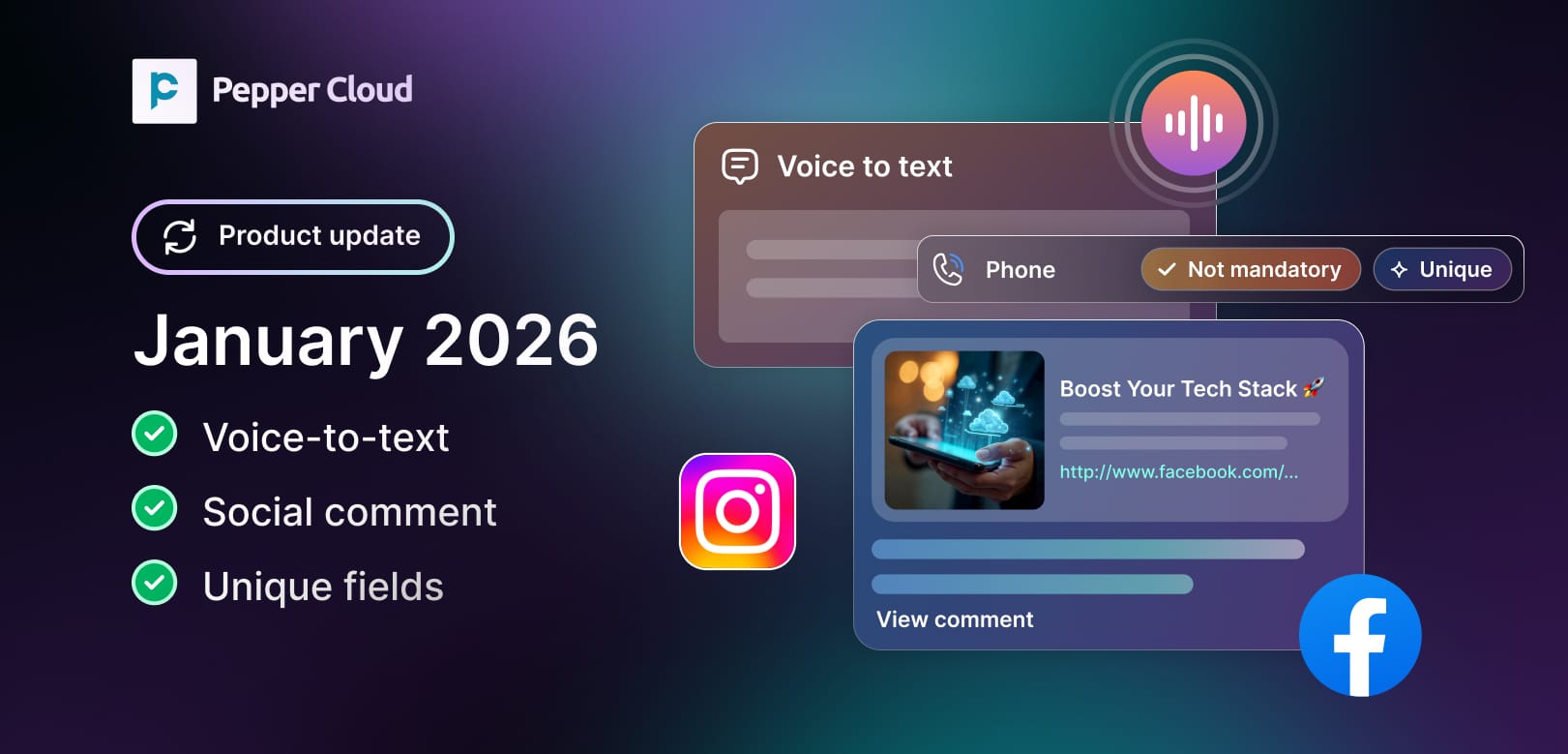

Start the new year with powerful new features designed to make your sales and support processes faster, smarter, and more reliable. From automated voice-to-notes to real-time workflow failure alerts, these updates help you stay in control and respond quickly. Here is what is new.
1. Voice-to-text: Save calls as notes and logs automatically
Capture meeting minutes, call logs, and more by converting your spoken words into structured notes instantly. The new voice-to-text (also known as voice-to-note) feature helps you focus on the conversation while keeping your CRM updated.
Why you will love it:
- Converts spoken words into text in real time
- Automatically saves as notes or call logs
- Reduces manual data entry
How you can use it: Use voice-to-text after calls/meetings to document key takeaways, customer requirements, or follow-up tasks.
How to explore: Go to a Lead or Contact record details page --> Click "+" --> Choose "Add Note" or "Add Log" --> Click microphone icon, and start speaking.
Note:
- You can transcribe up to 3 minutes at a time
2. Social comment alerts: Respond faster to comments
Do not miss out on social media engagement. Be instantly notified within the message module when someone comments on your Facebook or Instagram posts or ads.
Why you will love it:
- Real-time notifications for social media comments
- Increases engagement and response speed
- Helps manage brand reputation
How you can use it: Reply to queries, or follow up on leads generated through Facebook and Instagram comments.
3. Unique custom fields: Prevent duplicates
Unique fields are fields that can't be duplicated. You can define specific rules for these fields, such as case sensitivity and uniqueness, to ensure that each entry remains distinct. This helps maintain data integrity and prevents duplication across key modules.
Why you will love it:
- Ensures unique entries across modules
- Reduces duplicate data and errors
- Works with number or text fields
How you can use it: Create unique fields for critical data like customer IDs in modules like Contacts or Leads.
How to explore: Go to admin settings --> Navigate to "Customisation" --> Go to "Custom fields" --> Click "Create new" --> Select the field type (Note: Unique fields can be created only for Text/Number field type) --> Add details and enable "Unique" and save it.
Note: Only 2 unique fields can be created for each module.
 Pepper Cloud Marketing
4. AssistAI credit tracker: Monitor credit usage
AssistAI credits are used for AssistAI features within Pepper Cloud CRM. With the recent feature release, you can now stay informed about how your team uses AssistAI. The monthly AssistAI credit usage tracker provides organisation-wide visibility into credit consumption.
Why you will love it:
- Tracks AssistAI credit usage across the organisation
- Supports budgeting and forecasting
- Prevents unexpected overuse
How you can use it: Monitor team usage, optimise AI-powered workflows, and plan your AI resource allocation more effectively.
How to explore: Navigate to the admin settings --> Navigate to "General" --> Choose "LLM preferences" --> You can see the AssistAI credits
 Pepper Cloud Marketing
5. Flag "Unreplied" conversations in the message module
Never miss an unreplied message again. This feature automatically flags conversations if you haven’t replied within 15 minutes, helping you follow up quickly and keep communication running smoothly. You can also easily view all unreplied messages using the filter option.
Why you will love it:
- Highlights conversations that are not responded to
- Nudges team members to respond
- Improves response times
How you can use it: Flag sales queries or customer support threads that have not been replied to yet. Perfect for managing team communication.
How to explore: Message module --> Filter messages with "Not replied" or find messages with "Reply?" tag and reply to the conversations
 Pepper Cloud Marketing
6. Workflow updates
6.1. Cancel pending workflows
Have more control over your workflow automation. You can now cancel workflows that are still pending before they execute.
Why you will love it:
- Prevents unwanted or incorrect workflow actions
- Saves time by avoiding manual corrections
- Adds flexibility to workflow management
How you can use it: Cancel a workflow if customer data changes, if it was triggered by mistake, or if the task is no longer required.
How to explore: Go to admin settings --> Navigate to "Automation" --> Click on "Workflow" --> Go to "History" --> Choose workflows with "Pending" status --> Select the workflow and click cancel.
Note: Processed workflows cannot be cancelled.
6.2. Workflow failure notifications: Stay on top of issues
Automated workflows can fail, but now you will know instantly. With the latest feature, you can now get real-time notifications that alert you when something breaks, so you can act fast.
Why you will love it:
- Sends real-time notifications as soon as any workflow encounters a failure
- Helps diagnose issues quickly
- Reduces operational disruptions
How you can use it: Use notifications to track high-impact workflows and keep your automation systems reliable.
 Pepper Cloud Marketing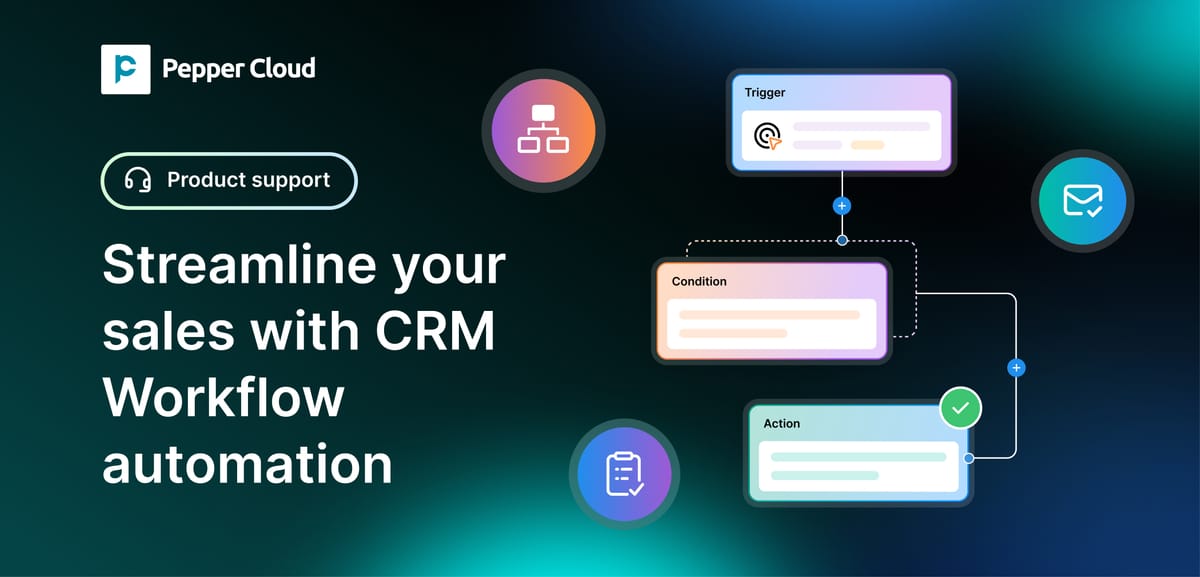
7. Visual task pipeline: Manage tasks visually
See your tasks like never before. You can now view the task stages in a pipeline format, which makes it easier to plan, prioritise, and progress.
Why you will love it:
- Displays tasks in a visual pipeline
- Improves task tracking and prioritisation
- Helps identify bottlenecks
How you can use it: Use the visual pipeline to manage your daily tasks or team assignments by moving items across stages.
How to explore: You can see the pipeline view of the task when you open the task details.
 Pepper Cloud Marketing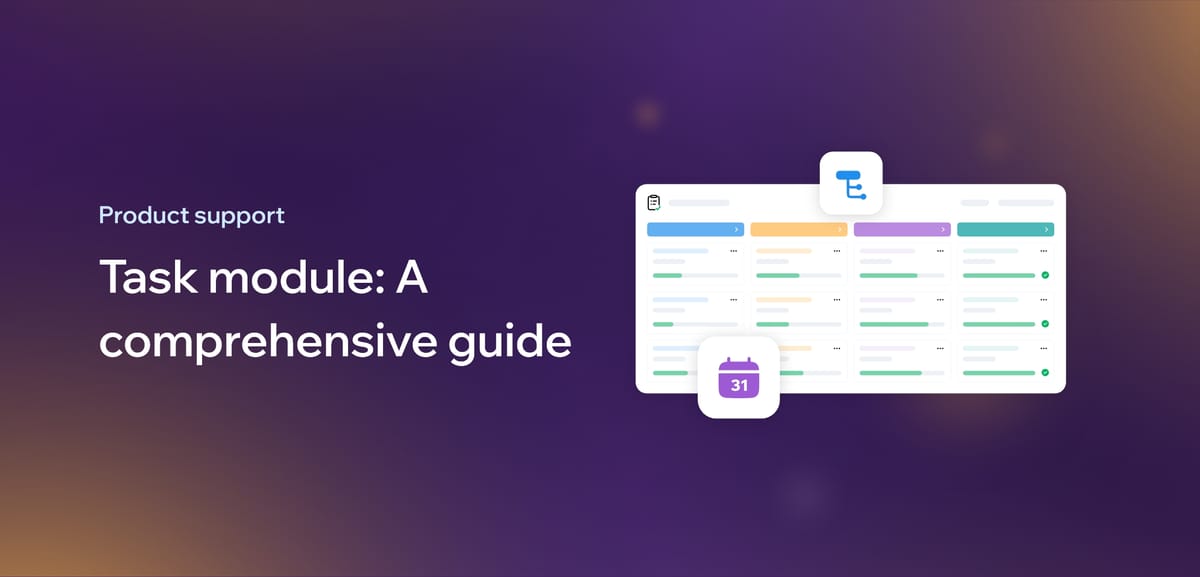
Ready to explore these updates? Log in now and try them out. For help or feedback, contact our friendly support team.


