


How to use the scheduling AI agent within Pepper Cloud AI CRM
Learn how to use the Scheduling AI Agent within Pepper Cloud AI CRM to simplify appointment and meeting management. This user guide explains how the agent supports scheduling workflows, helps sales teams organise meetings and reduces manual coordination, keeping customer interactions on track.
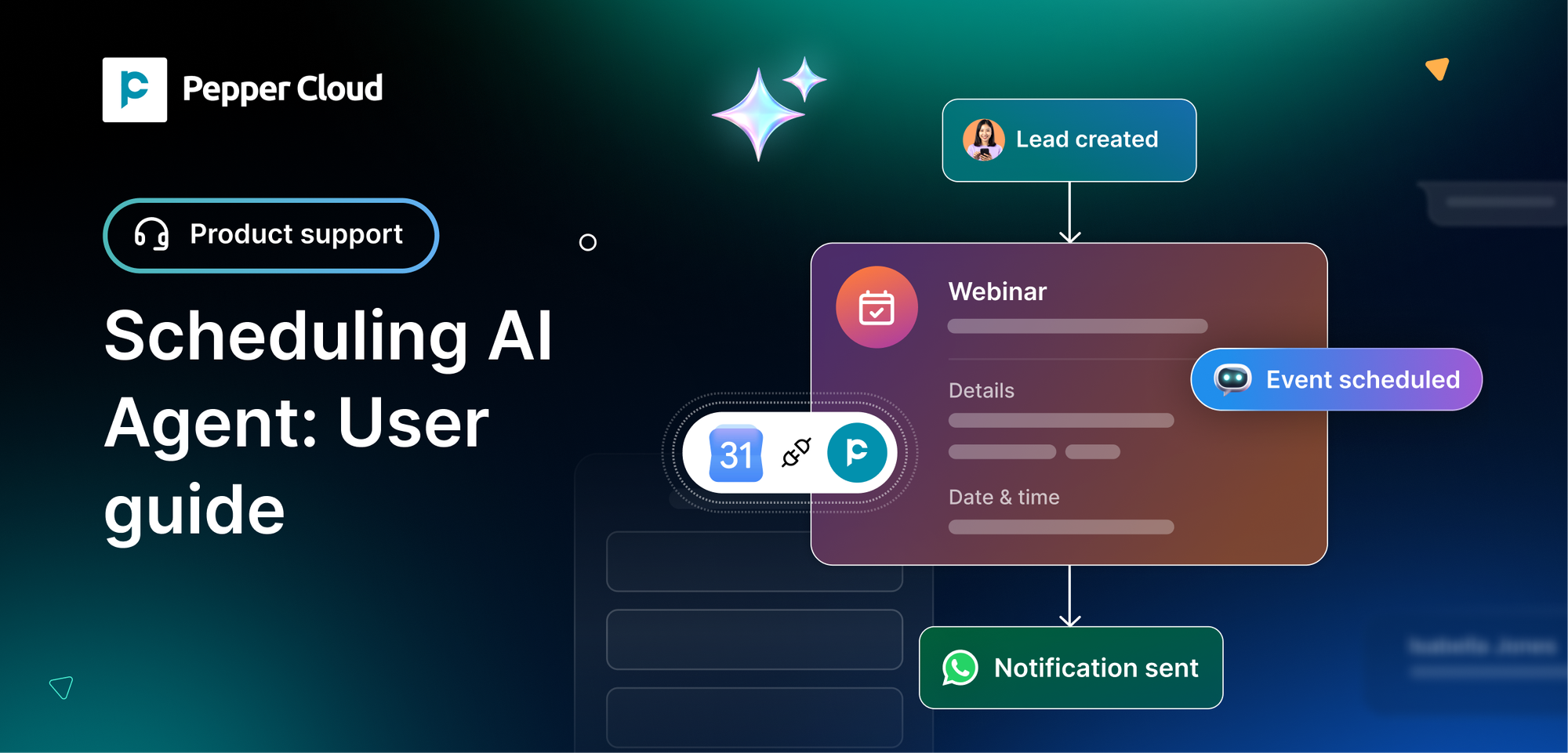

Scheduling a meeting should be straightforward, but coordinating calendars, confirming availability and managing last-minute changes can create unnecessary back-and-forth between sales representatives and prospects.
Without clear booking rules, your teams may also encounter overlapping meetings, insufficient breaks between calls or bookings outside their working hours.
The Scheduling AI Agent in Pepper Cloud CRM helps streamline meeting management by connecting with Google Calendar and applying configurable scheduling rules.
It enables teams to manage availability, control booking windows, define meeting durations and handle rescheduling more consistently.
This guide explains how the Scheduling AI Agent works, how to configure its key capabilities and how your team can use it to manage meetings more efficiently.
What is the Scheduling AI Agent?
The Scheduling AI Agent automates key parts of meeting management by combining Google Calendar synchronisation with configurable booking controls.
Instead of coordinating every meeting manually, teams can use the agent to manage availability and apply predefined rules to the scheduling process.
Its core capabilities include:
- Google Calendar integration: Sync calendar availability to support scheduling around existing commitments.
- Customisable booking rules: Configure booking availability by defining active days, working hours, meeting durations and mandatory buffer times between consecutive calls. Set limits on the maximum number of active schedules or bookings that can be managed.
- Rescheduling controls: Configure how upcoming meetings can be rescheduled, including the available controls for clients and representatives.
- Past meeting protection: Keep past events locked against rescheduling to preserve historical meeting records.
- Time-slot blocking: Reserve time for internal meetings, personal commitments, holidays or other periods when bookings should not be accepted.
Together, these capabilities help teams establish a more consistent scheduling process while retaining control over their calendars.
Why use the Scheduling AI Agent?
For sales and customer-facing teams, meeting management is closely connected to the customer experience. A prospect who cannot find a suitable slot may delay a conversation, while a poorly managed calendar can disrupt a representative's working day.
The Scheduling AI Agent helps address these challenges through structured scheduling rules.
1. Reduce scheduling back-and-forth
Coordinating availability manually often involves multiple messages before a suitable time is confirmed. Calendar synchronisation and defined booking rules help simplify this process.
2. Manage availability more effectively
Teams can define the days and hours during which meetings may be scheduled, helping keep bookings within their intended working schedules.
3. Protect time between meetings
Back-to-back meetings can leave representatives without enough time to prepare notes, update CRM records or get ready for the next conversation. Configurable buffer times help create space between consecutive calls.
4. Control rescheduling permissions
Not every meeting should be treated the same way. Configurable rescheduling controls help teams determine how upcoming appointments can be changed while keeping past events protected.
5. Prevent unwanted bookings
Blocking specific time slots helps reserve space for internal discussions, holidays, personal commitments and other periods when representatives are unavailable.
6. Control the maximum number of active bookings
Set a limit on the maximum number of active bookings or schedules that can be managed at a time. This helps teams control their meeting workload, avoid excessive commitments and maintain a manageable calendar.
How does the Scheduling AI Agent work?
The scheduling workflow combines calendar availability with rules that determine when meetings can be booked and changed.
Step 1: Google Calendar synchronisation
The agent connects with Google Calendar so that existing calendar commitments can inform meeting availability.
Step 2: Booking rules are applied
The configured rules determine the eligible booking days and hours, meeting duration and required buffer between consecutive meetings.
Step 3: Available slots are managed
The scheduling process uses the configured rules and calendar availability to determine which meeting slots can be offered.
Step 4: Rescheduling permissions are checked
When a meeting needs to be changed, the configured controls determine whether the upcoming event can be rescheduled by the client or representative.
Step 5: Blocked periods remain unavailable
Time slots reserved for internal commitments, holidays or other unavailable periods are excluded from booking according to the configured rules.
Step 6: Maximum active booking limits are applied
The agent follows the configured limit on active bookings or schedules, helping teams manage their meeting capacity and prevent bookings beyond the permitted limit.
The exact scheduling experience depends on your calendar connection, booking configuration and enabled permissions.
How to configure the Scheduling AI Agent
The Scheduling AI Agent uses calendar integration and CRM-level business hour settings to manage meeting availability. Follow these steps to configure the required settings in Pepper Cloud AI-powered CRM.
Step 1: Connect Google Calendar through User Integrations
Begin by connecting the Google Calendar account that the AI Agent will use to check meeting availability.
- Navigate to User Integrations in Pepper Cloud CRM.
- Locate the Google Calendar integration.
- Follow the authentication process to connect your Google account.
- Complete the required authorisation steps.
- Verify that the calendar connection is active.
Make sure you connect the correct calendar account before configuring the AI Agent, as its scheduling functionality depends on the authorised calendar.
Step 2: Configure business hours in Message Module Settings
Set the days and hours during which customers can schedule meetings through the Business Hours settings in the Message Module.
- Navigate to the Message Module in Pepper Cloud CRM.
- Open the Business Hours settings.
- Define the active booking days.
- Set the applicable working hours.
- Review the configured availability to ensure it reflects your team's operating schedule.
For example, a team may accept meeting requests from Monday to Friday, between 9:00 am and 5:00 pm, while keeping weekends unavailable.
These settings determine the business hours within which the scheduling process can operate. They are configured at the Message Module level, not within the AI Agent.
Step 3: Configure the Calendar Tool in the AI Agent
Once Google Calendar is connected, open the specific AI Agent you want to configure.
- Navigate to the AI Agent configuration.
- Open the Tools tab.
- Locate and configure the Calendar tool.
- Review the available scheduling options and apply the required booking rules.
- Configure meeting duration and mandatory buffer times between consecutive meetings, where supported.
- Set the maximum number of active bookings or schedules permitted, if available.
For example, a 30-minute discovery call with a 15-minute buffer requires a 45-minute allocation before another meeting can begin, assuming the buffer is applied after the meeting.
Step 4: Configure rescheduling rules
Review the rescheduling controls available under the Calendar tool configuration.
For upcoming events, define the permissions for changing scheduled appointments and determine whether customers or representatives can reschedule meetings.
Consider the following:
- Who can reschedule an upcoming meeting?
- Can customers change appointments independently?
- What permissions should representatives retain?
- Are there restrictions on rescheduling close to the meeting time?
Important: Past events remain locked to protect historical meeting records. Rescheduling permissions apply to eligible upcoming appointments, not completed meetings.
Step 5: Test the scheduling workflow
Before making the Scheduling AI Agent available to customers, test its behaviour using a few sample booking scenarios.
- Check whether the connected Google Calendar availability is reflected correctly.
- Verify that bookings follow the configured business hours.
- Test meeting durations and buffer times.
- Check whether the maximum active booking limit is enforced, if configured.
- Test rescheduling permissions for upcoming appointments.
- Confirm that blocked calendar periods are excluded from available slots.
Important: Past events are locked to protect historical meeting records. Rescheduling controls are intended for eligible upcoming events rather than changing completed appointments.
Step 6: Block unavailable time slots
Use the time-slot blocking capability to reserve periods when meetings should not be scheduled.
Examples include internal team meetings, holidays, training sessions, personal commitments and dedicated project work.
Review blocked periods whenever your schedule changes. This helps prevent the booking process from offering times that your team cannot accommodate.
Step 7: Test the complete scheduling workflow
Before using the configuration for live bookings, test the main scenarios.
- Confirm that Google Calendar availability is reflected correctly.
- Check that meetings can be scheduled only within the configured booking windows.
- Verify that the selected meeting duration is applied.
- Confirm that the required buffer is respected.
- Test the configured rescheduling permissions for upcoming meetings.
- Check that past events remain locked.
- Verify that blocked time slots are unavailable for booking.
Testing these scenarios helps identify configuration issues before they affect customer meetings.
Scheduling AI Agent use cases
The Scheduling AI Agent can support different meeting workflows across sales, customer success and internal operations.
Use case 1: Booking discovery calls with prospects
A sales representative wants to arrange an introductory call with a new lead. Instead of exchanging multiple messages to find a suitable time, the scheduling process uses the representative's connected calendar and configured booking rules to manage eligible slots.
Business value: A more structured booking experience and less manual coordination.
Use case 2: Managing product demonstrations
A sales team conducts product demonstrations throughout the week. Each demonstration requires a defined duration and preparation time before the next call.
The team can configure meeting durations and buffer times to accommodate these requirements.
Business value: More predictable calendars and time to prepare between demonstrations.
Use case 3: Handling customer-requested rescheduling
A prospect needs to move an upcoming meeting because of a scheduling conflict. The configured rescheduling rules determine whether the client can make the change or whether the representative must manage it.
Business value: Clearer control over meeting changes without treating every request as an entirely new booking.
Use case 4: Protecting time for internal work
A representative needs to attend an internal review or take a day off. The relevant time slots can be blocked to prevent meetings from being booked during those periods.
Business value: Better calendar management and fewer scheduling conflicts.
Use case 5: Managing recurring sales activity
A sales team handles discovery calls, follow-ups and demonstrations throughout the working week. Defined availability, durations and buffer rules help establish a consistent approach to meeting management.
Business value: A more organised scheduling process that aligns with the team's daily workflow.
Best practices for using the Scheduling AI Agent
A well-configured scheduling process should reflect how your team actually works. Review these practices when setting up or maintaining the agent.
- Keep calendar availability accurate: Ensure that the connected Google Calendar reflects existing commitments and unavailable periods.
- Set realistic booking hours: Configure working windows that account for team schedules and customer-facing responsibilities.
- Choose suitable meeting durations: Match the duration to the purpose of the meeting rather than applying one setting indiscriminately.
- Allow preparation time: Use buffers to support note-taking, follow-ups and preparation between calls.
- Review rescheduling permissions: Make sure clients and representatives have the appropriate level of control over upcoming appointments.
- Block time proactively: Reserve holidays, internal meetings and other unavailable periods before opening slots for booking.
- Test changes before rollout: Verify calendar synchronisation, booking windows and rescheduling behaviour whenever you update the configuration.
Conclusion
The Scheduling AI Agent in Pepper Cloud CRM helps teams bring more structure to meeting management by connecting calendar availability with configurable booking rules.
From defining working hours and meeting durations to managing rescheduling permissions and blocking unavailable periods, the agent supports a more consistent approach to coordinating customer conversations.
With accurate calendar information and carefully configured scheduling rules, sales teams can reduce manual coordination, protect time for preparation and manage upcoming meetings with greater control.
Explore AI WhatsApp CRM to simplify meeting management and create a more organised scheduling experience for your team.
Frequently asked questions
1. What does the Scheduling AI Agent do in Pepper Cloud CRM?
It helps manage meeting scheduling through Google Calendar synchronisation, configurable booking rules, rescheduling controls and time-slot blocking.
2. Does the Scheduling AI Agent integrate with Google Calendar?
Yes. Google Calendar integration is a core capability. It allows calendar availability to inform the scheduling process.
3. Can I control when customers book meetings?
Yes. The agent supports configurable booking days and hours so that meetings can be restricted to the intended availability windows.
4. Can I set different meeting durations?
You can configure meeting duration as part of the booking rules. Choose a duration that suits the type of meeting being arranged and the options available in your CRM setup.
5. Why are buffer times important?
Buffer times provide space between consecutive meetings for preparation, note-taking and follow-up tasks. They also help prevent schedules from becoming unnecessarily compressed.
6. Can clients reschedule their meetings?
Rescheduling permissions can be configured for eligible upcoming meetings. The available controls determine whether clients, representatives or both can make changes.
7. Can past meetings be rescheduled?
No. Past events are locked under the defined scheduling behaviour to preserve historical meeting records.
8. Can I block time for holidays and internal meetings?
Yes. The time-slot blocking capability allows you to reserve periods for holidays, internal meetings, personal commitments and other unavailable periods.
9. What should I check before activating the agent?
Verify the Google Calendar connection, active booking days and hours, meeting duration, buffer settings, rescheduling permissions and blocked periods. Test the complete booking workflow before relying on it for customer appointments.