


How to integrate Zoom with Pepper Cloud CRM: A step-by-step guide
Connect Zoom to Pepper Cloud CRM, schedule Zoom meetings from CRM events, join in one click, automate reminders and remove the integration anytime.

Last updated: October 2026
Summary
To integrate Zoom with Pepper Cloud CRM, go to User Settings → Integration → Video Conferencing → Integrate Video Chat, click Integrate, then sign in to Zoom and authorise Pepper Cloud. Once connected, click Make Zoom Meeting when creating a CRM event to generate a Zoom link, and click Join Zoom Meeting on the event to start the call.
The Zoom integration lets you schedule, track and join Zoom meetings without leaving Pepper Cloud CRM. This guide shows you how to connect your Zoom account, schedule and join meetings, automate meeting reminders and remove the integration if you no longer need it.
What does the Zoom integration with Pepper Cloud CRM do?
With Zoom connected to Pepper Cloud CRM, you can:
- Create Zoom meetings from CRM events: Generate a Zoom meeting link while scheduling an event. The meeting details are added to the event description automatically.
- Keep Zoom calls in your activity list: Every Zoom meeting you schedule sits alongside your other CRM activities, so your team can see what's coming up.
- Join meetings in one click: Start or join the Zoom call straight from the event details page.
Before you start
- Plan: The Zoom integration is available on all Pepper Cloud plans.
- Zoom account: You need a Zoom account to authorise the connection. Pepper Cloud's listing on the Zoom App Marketplace allows any Zoom user role to add the app.
- Permissions: During setup, Zoom asks you to allow Pepper Cloud to manage your meetings. This is what lets the CRM create meeting links for you.
How do I integrate Zoom with Pepper Cloud CRM?
- Log in to your Pepper Cloud CRM account.
- Click your profile in the top-right corner of the screen and select User Settings.
- Click Integration.
- Under Video Conferencing, go to Zoom video.
- Click Integrate.
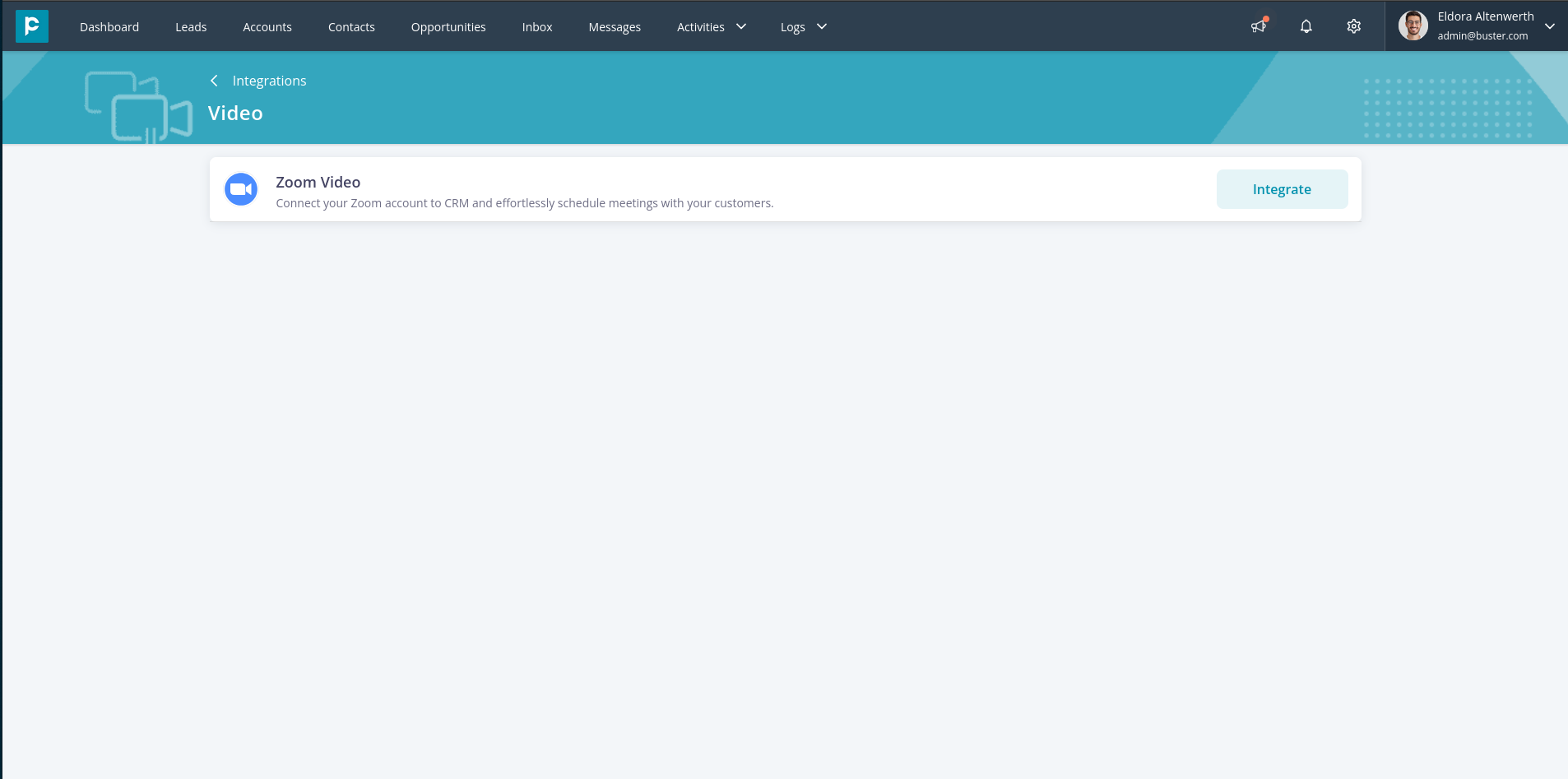
- In the pop-up that appears, click Continue. You'll be taken to Zoom's authorisation page.
- Log in to your Zoom account and click Authorise to allow Pepper Cloud to manage your meetings.
How to check it worked: Once you've authorised the connection, the integration is complete and you can start creating Zoom meetings from your CRM.
Watch this short video to see the setup in action.
How to integrate Zoom with CRM Integration
How do I schedule a Zoom meeting from Pepper Cloud CRM?
- Click Activities in the top navigation bar.
- Select Events to open the Events listing page.
- Click Create New in the top-right corner. The event creation modal opens.
- Click Make Zoom Meeting. A Zoom meeting is created, and its details are added to the event description.
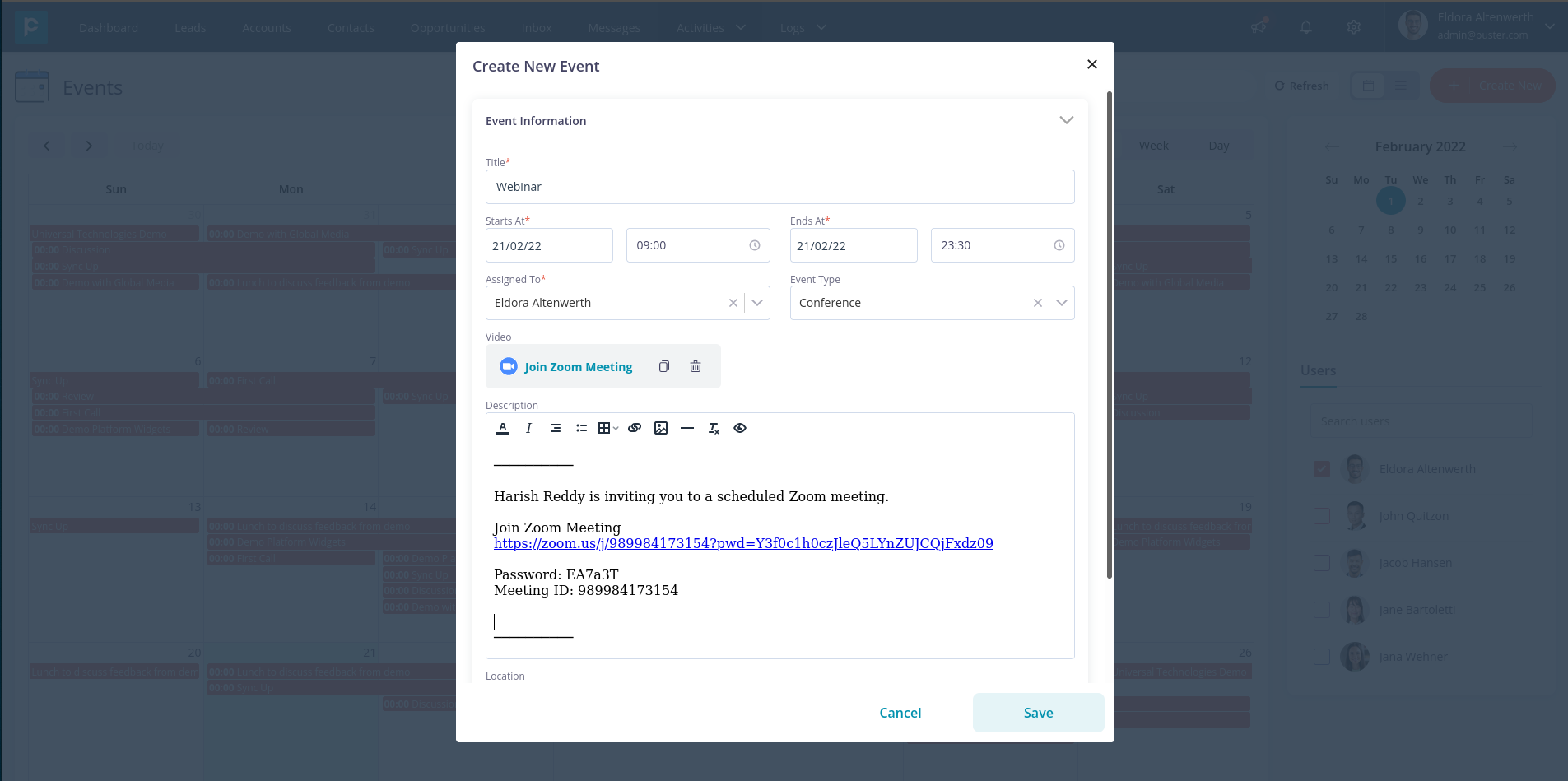
- Click on “Save” to create the event.
Tip: To share the meeting details with attendees in a consistent format, send them from the CRM using an email template.
How do I join a Zoom meeting from Pepper Cloud CRM?
- Click the event you created. This opens the event details page.
- Click Join Zoom Meeting.
How can I automate reminders for Zoom meetings?
Pepper Cloud's event notifications let you send reminders, updates and follow-ups automatically to the records associated with an event. Set them up once in workflow automation, and every Zoom meeting you schedule can trigger them.
For example, you can:
- Send attendees a reminder with the Zoom link 24 hours and 1 hour before a demo.
- Share a follow-up message or survey after the meeting.
- Remind team members who are linked to an internal meeting to prepare.How do I remove the Zoom integration?
You can remove the integration from Pepper Cloud CRM or from the Zoom App Marketplace.
Method 1: Remove it from Pepper Cloud CRM
- Go to User Settings → Integration → Video Conferencing.
- Click the three dots next to Zoom and select Remove.
- When asked, click Confirm.
Show Image
You can reconnect your Zoom account at any time by following the integration steps again.
Method 2: Remove it from the Zoom App Marketplace
- Sign in to the Zoom App Marketplace with the Zoom account you connected.
- Click Manage in the top-right corner.
- In the left panel, click Added Apps.
- Find Pepper Cloud CRM and click Remove.
Note: If the Remove button is greyed out, the app was added for your entire Zoom account. A Zoom account admin will need to remove it.
Troubleshooting the Zoom integration
- The Make Zoom Meeting button isn't showing. Check that Zoom is connected on the video integration page (User Settings → Integration → Video Conferencing). If it isn't, follow the integration steps again.
- Authorisation didn't complete. Make sure you're signed in to the correct Zoom account, then click Integrate again.
- Meetings are being created in the wrong Zoom account. Remove the integration, sign in to the correct Zoom account and integrate again.
- Still stuck? Raise a support ticket, and our team will help.
Frequently asked questions
- Is the Zoom integration available on my Pepper Cloud plan?
Yes. The Zoom integration is included in all Pepper Cloud plans.
- Can I join Zoom meetings directly from Pepper Cloud CRM?
Yes. Open the event and click Join Zoom Meeting to start or join the call.
- Where do the Zoom meeting details appear in the CRM?
When you click Make Zoom Meeting while creating an event, the meeting details are added to the event description automatically.
- Can I connect a different Zoom account?
Yes. Remove the current integration, then integrate again and sign in with the Zoom account you want to use.
- How do I disconnect Zoom from Pepper Cloud CRM?
Either go to User Settings → Integration → Video Conferencing, click the three dots and select Remove, or remove Pepper Cloud CRM from Manage → Added Apps in the Zoom App Marketplace.
- Can I send automatic reminders for Zoom meetings?
Yes. Use event notifications in workflow automation to send reminders, updates and follow-ups to everyone associated with the event.