


New features: Conversation bulk assignment, ticket module, and more
New features: 1. Conversation bulk assignment 2. Ticket module launch 3. Ticket reassignment 4. Auto-sync of conversations 5. Selective message sync (WhatsApp Web) 6. Clone workflow
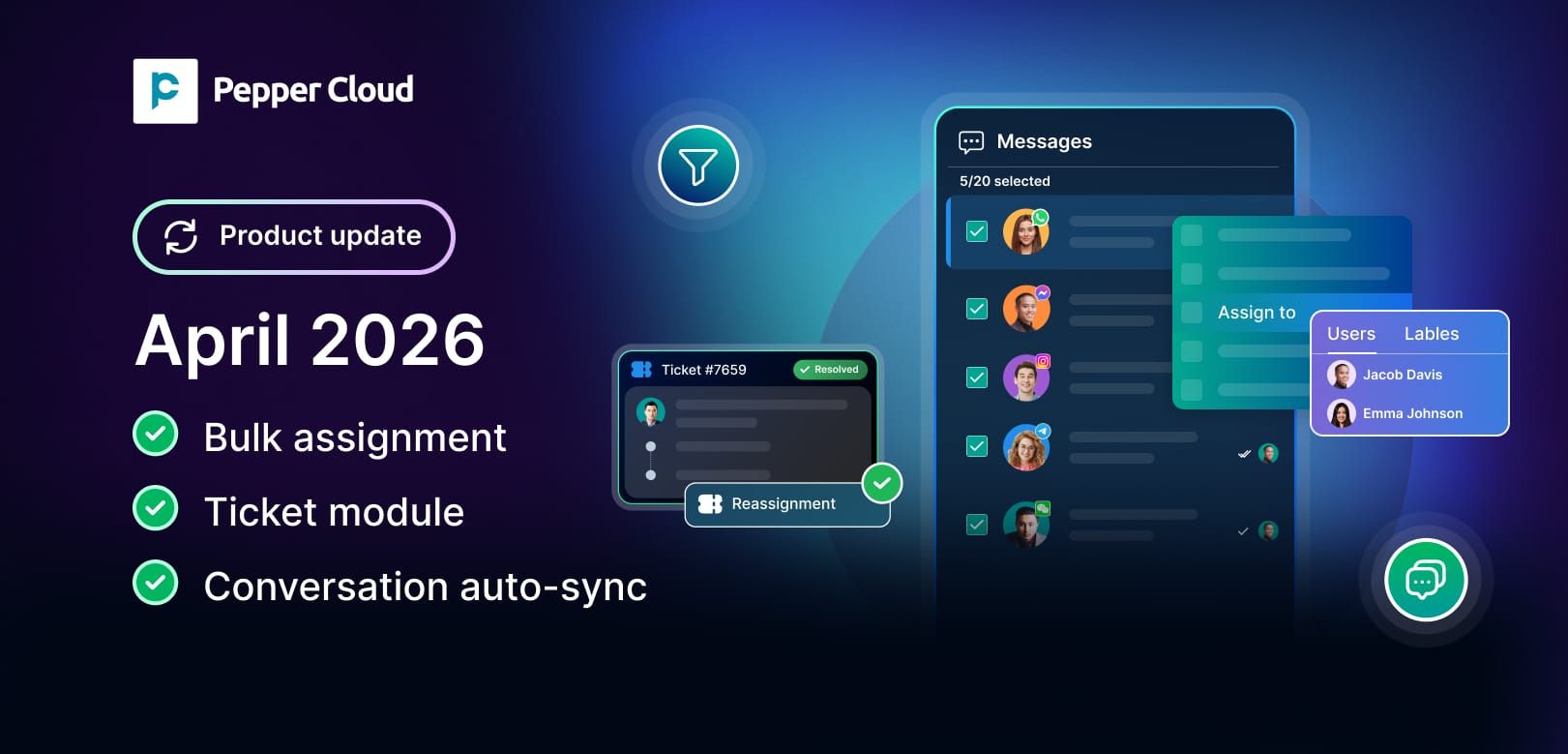

Managing customer conversations and support tickets efficiently is critical for growing businesses. With this latest product update, you gain more control, better visibility, and automation that reduces manual effort. From bulk conversation assignment to a fully dedicated ticket module, these enhancements are designed to help you respond faster, stay organised, and improve team productivity.
1. Conversation bulk assignment
Handling multiple conversations individually can slow down your team. With conversation bulk assignment, you can now update the “assigned to” field for up to 20 conversations at once directly from the message module.
Why you will love it
- Assign multiple conversations in one action
- Reduce repetitive manual work
- Improve team coordination and response time
How you can use it
If you manage a high volume of incoming queries, you can quickly distribute conversations among your sales or support team during peak hours.
Steps to explore the feature
- Navigate to the message module
- Select up to 20 conversations
- Click on “Assigned to”
- Choose the user or label and apply changes
2. Ticket module launch
You can now access a dedicated ticket module to manage, organise, and monitor all your support tickets in one place. It centralises ticket operations and provides structured visibility into your support pipeline.
Why you will love it
- Customise ticket listing views based on your requirements
- Export tickets for reporting and analysis
- Track ticket progress through a structured pipeline
How you can use it
Use customised views to prioritise high-value or urgent tickets, and export data to measure team performance or identify trends.
Steps to explore the feature
- Go to the ticket module
- Customise your listing view
- Track tickets through pipeline stages
- Export tickets when needed
 Pepper Cloud Marketing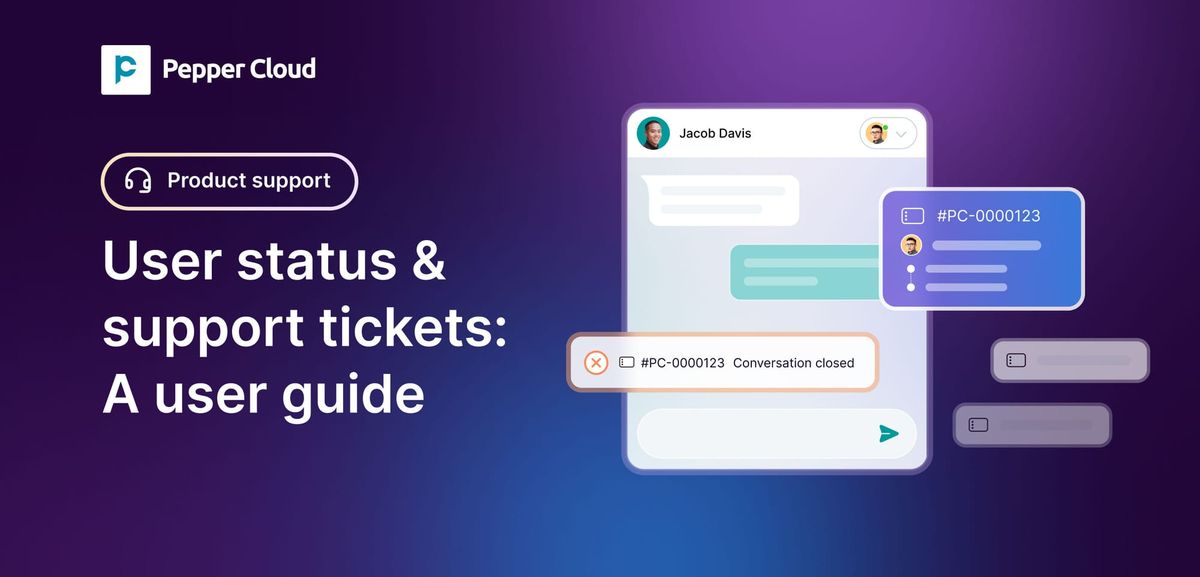
3. Ticket reassignment
Ensure no ticket is left unattended with automatic ticket reassignment when a user is offline. Ticket reassignment is an automated feature that ensures tickets are always handled by an available team member. When the currently assigned user is offline, the system automatically reassigns the ticket to the next available user when the customer replies.
Why you will love it
- Automatically assigns tickets to the next available user
- Reduces response delays
- Improves customer satisfaction
How you can use it
If a team member is offline and the customer messages, the system ensures that another team member can immediately take over, keeping your operations seamless.
Steps to explore the feature
- Go to Settings > Customisation.
- Navigate to user status.
- Edit the user status.
- Enable ticket reassignment.
4. Auto-sync of conversations
Gain better control over your WhatsApp communication with the option to enable or disable automatic conversation syncing for WhatsApp Cloud API via coexistence. With the latest update, you can easily access the last 6 months of conversation in CRM.
Why you will love it
- Choose when conversations are synced
- Avoid unnecessary data clutter
- Maintain better control over communication flow
How you can use it
If you only want relevant conversations in your system, you can selectively enable syncing based on your business needs.
Steps to explore the feature
- Go to Settings>Integrations>Channel integration>WhatsApp Cloud API via coexistence
- After entering the basic details, enable “Auto-sync last 6 months conversation”
5. Selective message sync (WhatsApp Web)
Selective message sync allows you to display only those WhatsApp Web conversations that are linked to saved leads and contacts in your system. This helps you focus only on relevant business conversations instead of viewing every message.
Why you will love it
- View only important conversations with leads and contacts
- Reduce clutter in your messaging interface
- Improve focus and productivity for your team
How you can use it
If your team handles a mix of personal and business chats on WhatsApp Web, you can filter and display only those conversations that matter to your sales or support workflows.
Steps to explore the feature
- Go to Settings > Integrations > Channel > WhatsApp Web
- Enter the required details
- Enable “Show specific conversation”
Note: When “Show specific conversation” is enabled and you delete a lead or contact associated with a conversation, you can still view the conversation.
6. Clone workflow
Clone workflow enables you to duplicate an existing workflow with a single click, saving time and effort in recreating automation processes. It allows you to reuse successful workflows and customise them for new use cases.
Why you will love it
- Instantly copy existing workflows
- Maintain consistency in automation processes
- Reduce time spent on manual setup
How you can use it
If you have a high-performing workflow, you can clone it and make minor adjustments instead of building a new one from scratch.
Steps to explore the feature
- Go to Settings > Automation > Workflow
- Choose a workflow from the listing screen and click the three dots
- Click the clone icon
- Add workflow details and publish it
Pepper Cloud Marketing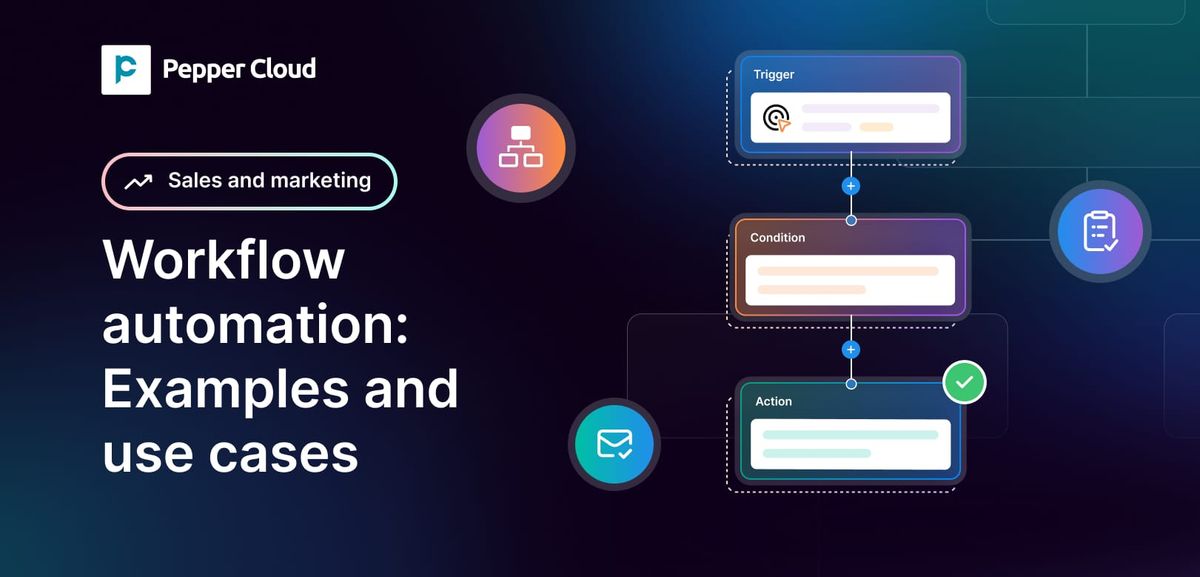
Take control of your customer communication today
These new features are designed to simplify how you manage conversations and tickets while improving efficiency across your team. Whether you are assigning conversations in bulk, tracking tickets through pipelines, or converting emails into tickets, you now have the tools to deliver faster and more organised customer support.
Start exploring these features today to optimise your workflow and achieve better results.